See How RouteBot Plans, Optimizes & Tracks School Transportation
Most product demos are videos. This one isn't. RouteBot is a school transportation management and route optimization platform, and its demo drops you into the actual application with a sample fleet already loaded. This page walks through the workflow first, so you know what you're looking at once you're inside.
Opening it takes one click. A temporary sandbox account is created for you in the background; there's no form to fill in and nothing to install.
No signup required · Instant access · Sample data included
What You Get in the Live Demo
Opening the demo takes you to the real RouteBot dashboard, ready to explore.
- It's the actual product, not a video or a click-through mockup
- Sample data is already loaded: 1000+ passengers, plus routes, vehicles, and drivers
- You'll see the dispatcher dashboard and the driver / parent apps on the same routes
- Your sandbox is private — keep it as a free account if you want
Prefer to Watch First?
Our founder walks through the same workflow on the live dashboard — route creation, passenger distribution, and optimization — in about ninety seconds.
The RouteBot Workflow, Step by Step
This is the same path every RouteBot operation follows: start with a spreadsheet of students, end with optimized routes running live on the road. You can do all of it yourself in the live demo.
- 1
Import or add your students and passengers
Routing starts with people and addresses. Addresses are the hard part because it is hardest to get it correctly that resolves into a single correct location. In RouteBot dashboard, under the Directory tab, you keep your drivers, students, parents and employees. Upload a student list from Excel and RouteBot geocodes every pickup and drop-off address onto the map. Alternatively you can add people one at a time and drag the pin to their doorstep. Bad geocoding is the single biggest source of bad routes, which is why in Routebot, the address text and the map pin stay in two-way sync: change one, the other follows.
In the demo you can skip Upload From Excel step entirely. If you want to know how bulk import copes handles messy real-world spreadsheets, the Excel import page covers that in more detail.
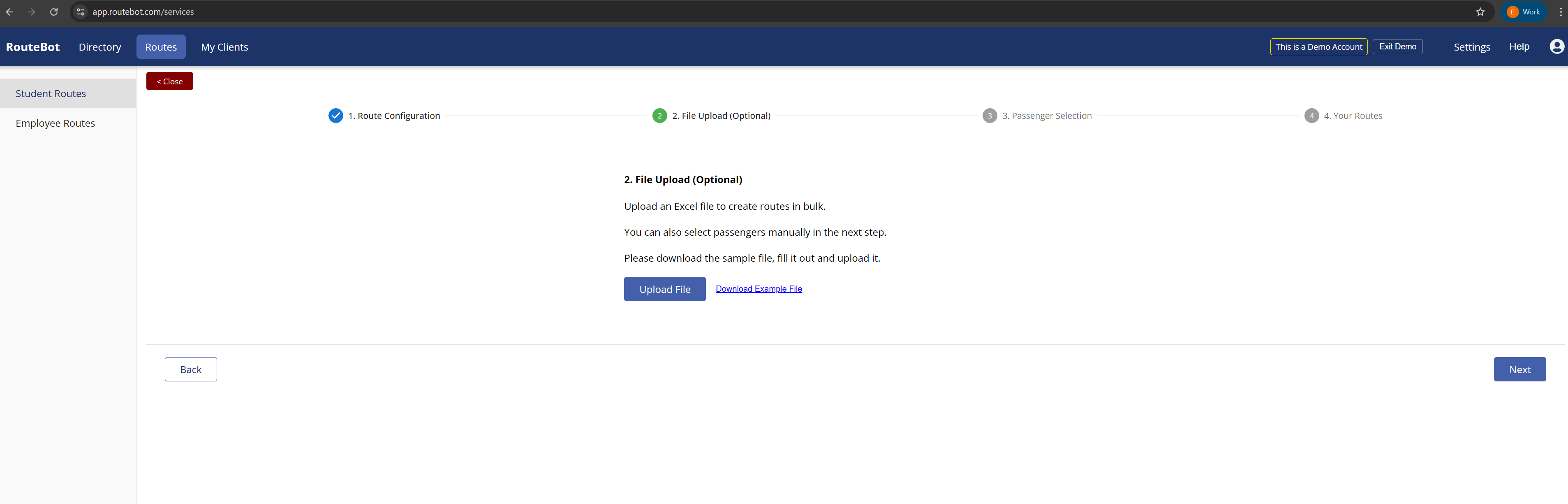
Importing a student list from Excel - 2
Create transportation routes automatically
You can build every route one by one by adding students/passengers in them and optimize each route automatically. But we have a bulk route creation capability and it makes this process much easier. Bulk route creation asks for three things: a school or any destination and the maximum passengers per vehicle. Then it distributes everyone into routes by proximity. Five hundred students take under a minute. 1000+ students, maybe a minute or so.
The output is the optimized routes for all the passengers so that they can be transported in the most efficient way. System will automatically calculated how many vehicles you will need and which vehicle will transport which passengers. You have full flexibility to adjust the routes as per your needs. You can drag a passenger from one route to another, reorder stops, then approve. Drivers see nothing until you push it. The same flow works whether you run a school district or employee shuttles; the constraints change, the puzzle doesn't.
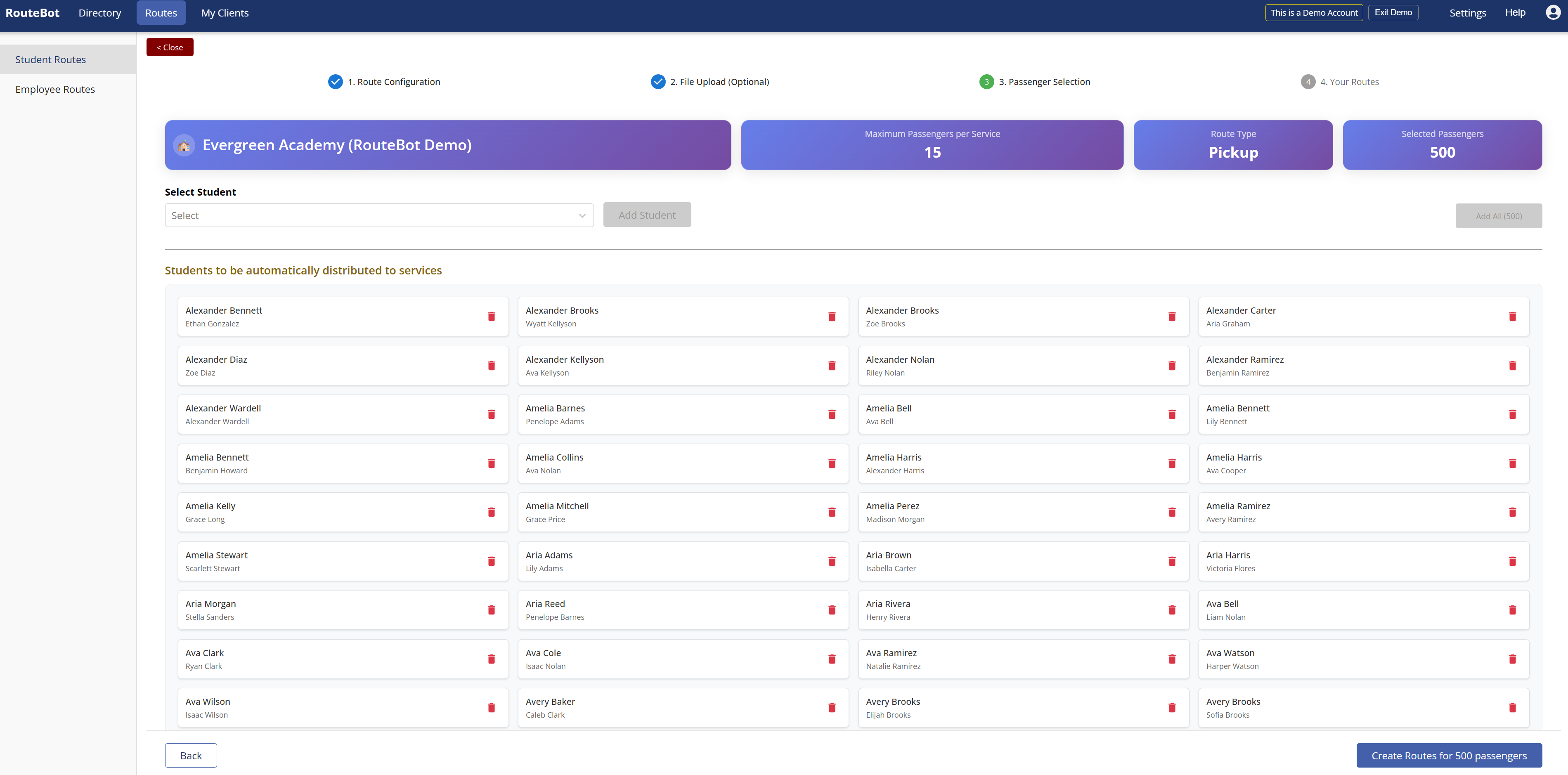
Distributing 500 students into routes automatically - 3
Optimize the route
Open any route and hit Optimize Route button. The RouteBot optimization engine sequences the stops using actual road distances, so all the details likeone-way streets and awkward turns are accounted for. Then it works backward from the arrival time to give every passenger a proper pickup time. It calculates total distance and duration for the route. A small badge even tells you how many kilometers/miles you just saved.
That's the whole ceremony. Run it, glance at the result, save. If you want to know what the engine is actually balancing under the hood, the route optimization page goes deeper.
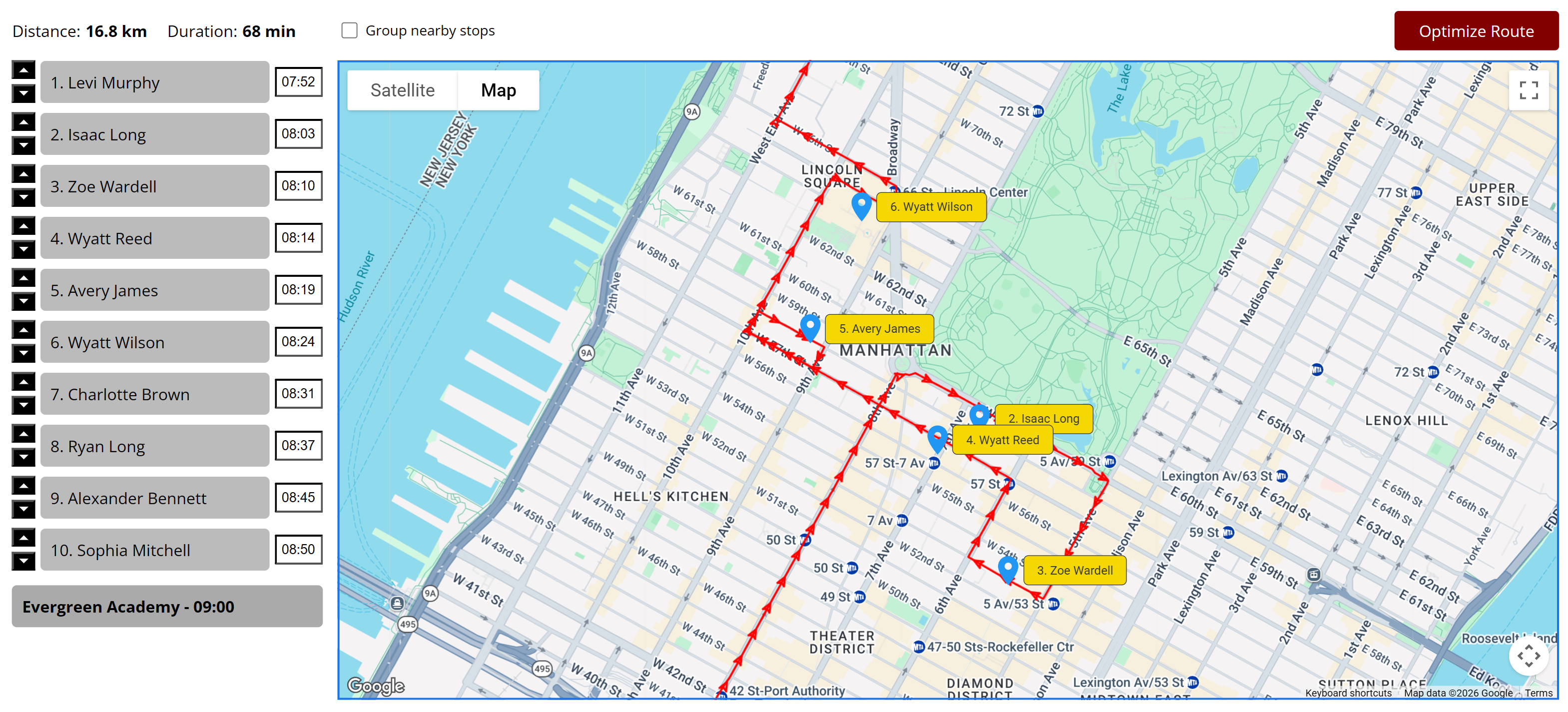
An optimized route with computed pickup times - 4
Review stops, vehicles, and drivers on the map
The optimizer gets you most of the way and you can leave it as it is or make further adjustments. The map view is where you handle the rest, because you know things the algorithm doesn't: the corner where parents actually wait, the street to avoid at 7am. Move a passenger up or down the stop order, group nearby stops, or adjust a single pickup time, and the RouteBot recalculates everything downstream of your change.
This is also where a route gets its vehicle plate and drivers, and where a pickup route becomes its drop-off twin in one click instead of being rebuilt from scratch. How vehicles and drivers are organized at scale is covered under fleet management.
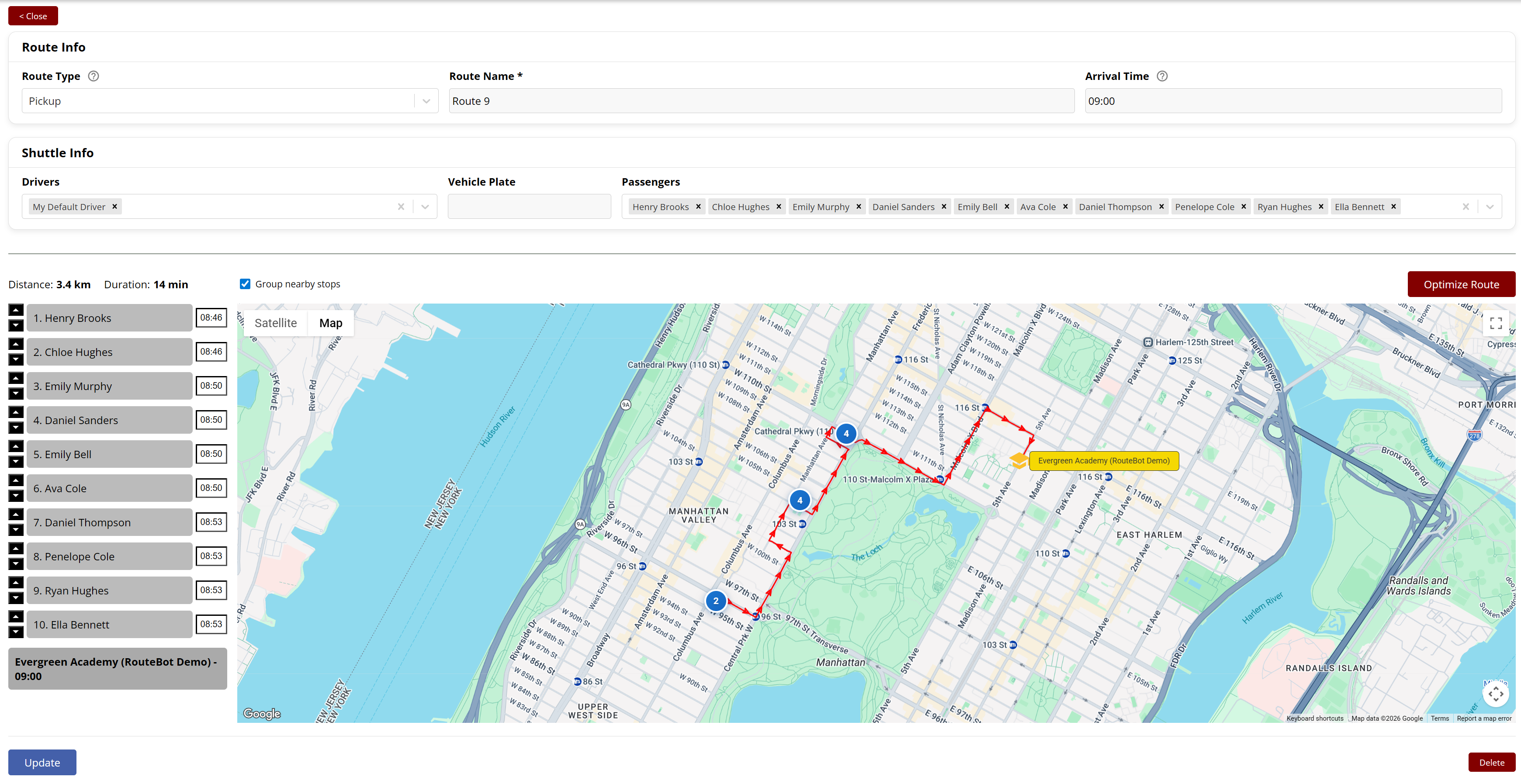
Reviewing ordered stops and the route path on the map - 5
Run the route with the driver app
Drivers don't get printouts. They open the mobile app, pick their route, and start it. The app walks them through the stop order with each passenger's pickup time, and boardings get marked as they happen. If you need verified attendance, students scan a QR code as they board or alternatively driver can manually enter the attendance into mobile driver app for each passenger.
A running route also streams the phone's GPS position, which is what powers everything in the next step. There is no hardware to install in the vehicle.
If you already have an embedded GPS device in the vehicle, we have a feature to integrate that device's GPS position directly into RouteBot and skip the phone GPS streaming.
Our mobile driver app does not work only on mobile phones or tablets, it also works on embedded devices like Telox M6G.
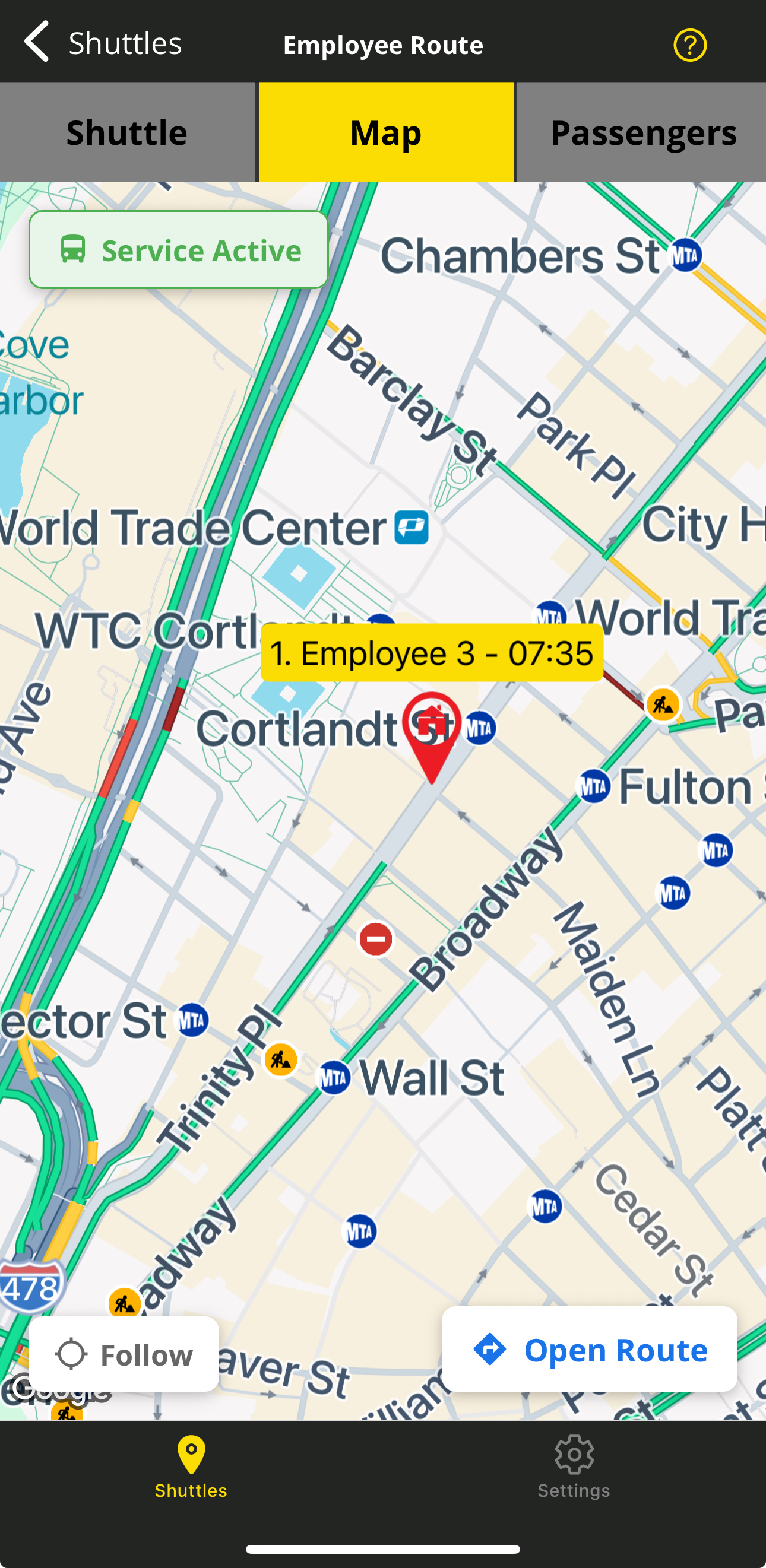
An active route in the driver app - 6
Track vehicles live and keep parents informed
One GPS stream, two audiences. Dispatchers watch the whole fleet from the Track Vehicle screen on their RouteBot dashboard, with live positions, route history playback, and statuses like “arrived at destination” or “passenger did not board”. Parents see just their child's bus, moving on the map with the driver's name and their own stop and pickup time.
Notifications fire on their own as the bus hits trigger points: approaching the pickup, arrived at school, student didn't get on. Nobody has to call families individually to tell then that bus is approaching the stop.
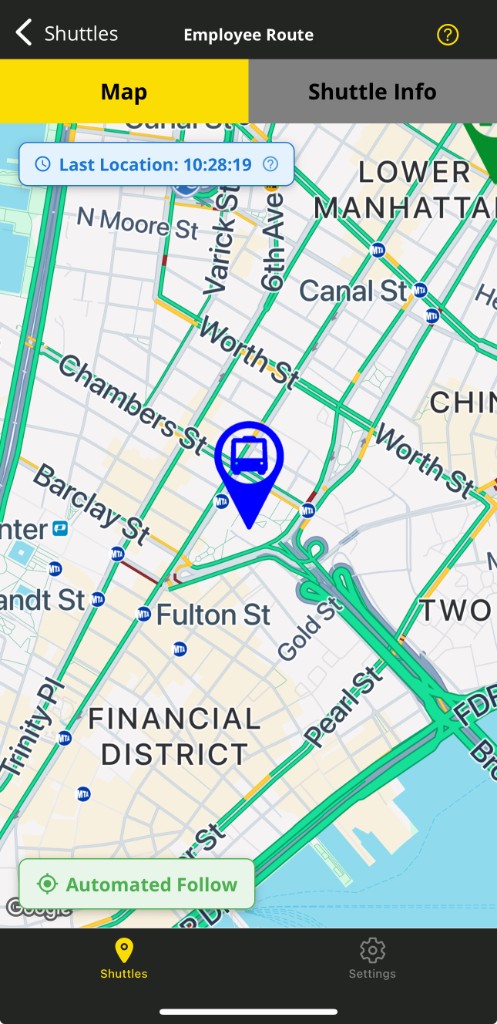
Live vehicle tracking in the mobile app
Want the Full Feature Breakdown?
The six steps above are the routing loop, but RouteBot also does analytics, shift management for employee transport, fleet records, and a few things that didn't fit on this page. Browse all features, or read how it applies to school transportation and employee shuttles specifically.
The Demo Is Faster Than This Page
Reading about routing software is a poor substitute for running an optimization yourself. One click puts you in a private sandbox with students, vehicles, and routes already loaded. Nothing you do in there affects anyone else.
No signup required · Instant access · Sample data included